Showing posts with label mouse. Show all posts

Logitech G502 Proteus Core Tunable Gaming Mouse Review


     Back in May this year, Logitech officially launched the G502 Proteus Core in Malaysia. While I did request a review sample back then, it is only till last month did I finally get my hands on one due to popular demand (or because reviewers like me tend to hold on to stuff longer than we should). I remember first seeing this mouse back in April where it made it onto my "Best of PAX East" list and was pretty excited behind the idea of this particular mouse. Without further ado, let's get started with the review of the G502 gaming mouse.

Armaggeddon Alien IV G9x Gaming Mouse Review


     Today, I have with me the Galactic Black variant of Armaggeddon's Alien IV G9x; a gaming mouse that is targeted at those who are perhaps looking to invest in a gaming mouse but aren't quite ready to throw in the big bucks yet. I'm running out of intros so let's just cut to the chase.

Logitech G700s Wireless Gaming Mouse Review


     If you don't already know, in one of my previous reviews, the G602 became one of my favourite wireless mice of all time. Logitech has always been the one to trust when it comes to wireless mice; especially when precision is required, I have always placed my money on Logitech's wireless gaming mice. Today, I have with me the big brother of the Logitech's line of gaming mice, the G700s. Without further ado, let's see what the G700s has to offer.

ROCCAT Apuri Active USB Hub & Mouse Bungee Review


     I'm always interested in niche accessories that will improve one's experience while using the PC ecosystem. Today, I got the chance to review the ROCCAT Apuri courtesy of PLAY Interactive. I personally have never used a mouse bungee before so even though this review is mainly about the ROCCAT Apuri, it will also have a focus on what a mouse bungee brings to the table (heh).

WHAT'S IN THE BOX


The mouse bungee, an AC adapter, a USB cable and a piece of product information

TECH SPECS


REVIEW
     The packaging that holds the Apuri is fairly simple: a cube-shaped box that has a window on the front so potential buyers can get a quick look of what the Apuri looks like. Removing the Apuri from its packaging is a pretty easy task as well, one just has to open the box from the side and tada the Apuri is out along with its AC adapter and the USB cable.


     Let's start by taking a quick glance of the Apuri. The Apuri is presented in a tripod like form factor and features a rubber finish on the entire body. After plugging in either the AC plug adapter or the USB cable, the Apuri will start glowing in its signature ROCCAT blue. On the left side of the Apuri, we find the proprietary power inlet and a MicroUSB port that allows the Apuri to interface with your PC via the USB cable provided. What I like about the implementation of the MicroUSB cable is that even if you eventually in the slimmest of chance lose it or unintentionally tamper with the cable, you can easily find a replacement cable from your friendly neighbourhood mobile phone shop. On the other end of the cable, we find the signature USB header that is etched with ROCCAT wording.


 The AC cable
The MicroUSB cable
The USB cable

     Taking a look on the other two sides, we find 2 USB ports on each side which sums up to a grand total of 4 USB ports on the Apuri.


     Flipping the Apuri upside down, we see a ROCCAT logo that is also lit up in the signature ROCCAT blue. We also get to see the rubber grips on each of the feet of the Apuri. While these rubber grips only act as a cushion to prevent scratching the surface which one would put the Apuri on and doesn't provide any form of strong grip, there is no possibility of tripping or moving the bungee in normal usage situations.


     Let's shift our focus to how the Apuri performs as a mouse bungee. One of the perks of being an avid enthusiast of gaming peripherals is that I have plenty of mice sitting around to test out the mouse bungee. While the chances of me having the same gaming mice as you is slim, there are a few cable types that mice generally use which are braided cables, thin non-braided cables and the thicker non-braided cables. For ROCCAT's line of wired gaming mice usually use braided cables and the mouse bungee has no problems dealing with braided cables and the cable can be easily fit inside the mouse bungee. Thicker non-braided cables on the other hand, still fit into the bungee, but it's a pretty tight fit. From this, we can conclude that the Apuri mouse bungee has a wide range of compatibility for different thickness of cables. If you are wondering about how flexible the bungee is, I can assure you that it is very flexible and can cope with even the largest mouse movement a normal human being can perform.


     Now you might be wondering how the Apuri performs as a USB hub. I don't know if you have any experience with using USB hubs, but I have absolute distrust to those 1-to-4 port hubs that performs so poorly to the point where even using just 1 port of the hub just plain doesn't work. However, the Apuri is an active USB hub where it is powered by a dedicated AC adapter which completely negates the problem I have experienced with other passive USB hubs. To my surprise, when being powered by the AC adapter, the Apuri can charge up to 4 devices at a time, which is pretty impressive. On the other hand, being solely powered via USB still allows devices like mice or USB drives to interface with your device.

CONCLUSION

     Without a doubt, my review of the ROCCAT Apuri has been positive thus far and the only thing that is left to be done is to compare the Apuri to offerings by other manufacturers. While I won't name any specifics, doing a quick search yourself would quickly bring you to the conclusion that in most cases, buying a mouse bungee is buying a glorified piece of plastic or metal. On the other end, the Apuri has successfully make itself stand out from the crowd with its ambient lighting effects and the fact that it acts as an active USB hub makes it stand in a class of its own. With that said, there is one area that ROCCAT can improve upon. Even though the build quality of the Apuri is solid, I would like it to be a bit on the heavier side to give it a much more premium feel, but that's just me.

     The ROCCAT Apuri retails at MYR 129.00 and is already available through retail channels. If you are looking for a reliable mouse bungee or even just an extremely stylish active USB hub, I would recommend the ROCCAT Apuri wholeheartedly.

ROCCAT Kone Pure Optical Gaming Mouse & Raivo Gaming Surface Review

     Well, if you have not heard of ROCCAT, let me just tell you from the get-go that their company slogan/caption is: "DO IT YOUR OWN WAY AND DON'T TALK SHIT". No, I am not kidding. You can go and check it out for yourself here on their website. I think that is enough of an introduction of what an interesting manufacturer this is and today I have two of ROCCAT's product for review, the Kone Pure Optical and the Raivo. With the blood of the critically acclaimed Kone flowing in its veins, let's see what the Kone Pure Optical along with its trusty sidekick, Ravio has to offer.

WHAT'S IN THE BOXES


The mouse itself and a packet of information; the mousepad

TECH SPECS
ROCCAT Kone Pure Optical
  • Pro-Optic Sensor R3 with up to 4000dpi
  • 1000Hz polling rate
  • 1ms response time
  • 10.8megapixel
  • 20G acceleration
  • 3.8m/s
  • 16-bit data channel
  • 72MHz Turbo Core V2 32-bit Arm based MCU
  • 576kB onboard memory
  • Zero angle snapping/prediction
  • 1.8m braided USB cable
  • Max. width 7cm x approx. 12cm max. length
  • Approx. 90g (excl. cable)
ROCCAT Raivo
  • Hard-type gaming surface
  • Dimensions: 350 x 270 x 2mm 
REVIEW
     Let's start off the post by first covering the Kone Pure Optical. The packaging is very solid without making the mouse too hard to retrieve from it. Anyway, one could check out the mouse too from the little flip cover that seems to be featured on almost every gaming mice's packaging. Well, enough of the box talk, let's get down to what matters which is the mouse itself.


     We start off by first looking at the cabling of the mouse. The Kone Pure Optical features a braided cable which allows those who frequently bring their mouse along to untangle the cables without much effort. Personally, I think braided cables are a great addition to gaming mice and it looks nice too, but some claim that the resistance it adds interferes with their gaming experience. To be honest, till this day, no braided cable has ever interfered with my gaming experience; how about you? What's your experience with braided cables? Do leave a comment down below. Getting back on track, the mouse also comes with a detachable velcro strap to ease cable management if users eventually decide to bring along the mouse. The USB header on the other has a cool little design on it, making it easier to identify if you ever need to plug it out from messy cable management.


     The Kone Pure Optical has a smaller footprint compared than that of the original Kone, making it much more suitable for people with medium-sized hands to palm grip it. For me, the mouse is indeed easier to handle. To expand on that, the mouse features a soft-touch surface, which makes the mouse even more comfortable to use for long sessions of gaming. Even the sides are using a softer finish compared than that of other gaming mice in the market. While it is certainly comfortable to rest my thumbs on, I prefer a rougher surface for the side grips. The soft-touch rubber finish also seems to be much more resistant to accidental scratches.


     Since we are looking at the sides, let's talk about the side buttons. The Kone Pure Optical, like its predecessors, features 2 side buttons. The button to the left (in the picture) is mapped to 'forward' by default, while the button on the right is mapped to ROCCAT's Easy-Shift[+]. Easy-Shift[+] is one of ROCCAT's interesting software features which I will elaborate more in my software overview post. Essentially, the function gives users access to an entirely different button mapping.

Click the image above to read the software overview!

     The Kone Pure Optical uses the Omron D2FC-F-7N switch for both left and right clicks to ensure the longevity of two of the most used buttons on the mouse. The scroll wheel, or rather the 'Titan Wheel' is claimed by ROCCAT to be able to deliver precise steps and elongate the useful lifetime of the scroll wheel. While I can't test if the scroll wheel can really deliver 6 million lifetime steps, I can attest that the 'Titan Wheel' is really able to deliver precise steps, I can feel sort of a bump with every step, preventing any unwanted weapon changes in FPS games, if you get what I'm saying. In addition, even with the slight bump with every step, one is still able scroll quickly if they desire to.


     Below the scroll wheel, we find 2 buttons that are used for DPI switching. These buttons don't use the same high quality Omron switches like the left and right clicks but it is understandable since these buttons won't be utilized as much as the left and right clicks. Moving further down, we find the signature ROCCAT logo etched on the palm rest. The logo is LED illuminated and users are able to choose from 16.8 million colours which they would like the logo to be illuminated with.


     On the flip side (heh), we get a closer look of the Pro-Optic R3 sensor. Underneath the fancy name is actually the Avago ADNS 3090 optical sensor, which is currently the top of the line sensor when it comes to optical sensors. The sensor supports as low as 400 DPI and as high as 4000 DPI with 400 DPI bumps available in software. The sensor also reports at a polling rate of 1000Hz at default, which minimizes the chance of the mouse pointer moving when it is not supposed to be moving. The Kone Pure Optical also features an on-board ARM processor alongside on-board memory for users to store macros and up to 5 profiles on-the-go without having to install the software on another computer. We also get to see the mouse feet of the Kone Pure Optical that both cover from one end to another.


     That about sums it up for the Kone Pure Optical, let's move on to its trusty sidekick, the Raivo gaming surface. The Raivo is a hard-type gaming surface which features a micro-granular surface which ROCCAT claims to result in the very slick surface. While I have no idea what the former means (actually it means that the surface is covered with tiny dots, but still), the Raivo is certainly very smooth, enabling users to quickly glide from one end to another. The grip that the rubber bottom offers is also very sturdy, making accidental budges a non-issue. The surface is also semi-flexible but not to the extent of you being able to roll it up.


CONCLUSION

    The Kone Pure Optical is one of the most comfortable mice I have ever used till this date. It feels very premium and is made of quality internals without compromising in any department. The Kone Pure Optical also proves to be one of the most full-featured mouse I have ever encountered with ROCCAT's software support, Talk FX. You would think that a mouse with no compromises would cost you a lot, fortunate to say, the Kone Pure Optical retails at MYR 235.00, which is almost standard if you seek for a good gaming mouse. With this price tag, the Kone Pure Optical presents itself as an extremely favorable deal for those who seek for superior performance and in-depth software functionality. With that said, the ROCCAT Kone Pure Optical is awarded the Editor's Choice award!

     The Raivo on the other hand, is a slick surface that would not budge with its firm grip. There really isn't anything special about it but that's the norm for mousepads. The ROCCAT Raivo comes with a price tag of MYR 95.00, of which I deem pretty reasonable for a hard surface. If you are looking for a hard surface but don't require it to be in a, so to say, "plate" form, you should seriously consider the Raivo as your next mousepad.


i-Rocks Rock Series M09 Gaming Mouse & C10 Gaming Mousepad Review


     Here I come with another i-Rocks product review, and this time I'm giving you a double scoop by covering the Rock Series M09 Gaming Mouse and C10 Gaming Mousepad at the same time. Like the K10, the M09 and C10 are focused on the fundamentals. Lets dig into what the M09 and C10 is all about.

WHAT'S IN THE BOXES

The mouse, a piece of instruction for it and the mousepad.

TECH SPECS

M09 Mouse
  • USB Interface
  • Adjustable Resolution: 500 / 1000/ 1750 DPI
  • Adjustable Report Rate: 125 / 500 / 1000Hz
  • Dimension: 117(Length) x 66.5 (Width) x 41.5 (Height) mm
  • Cable Length: 180 cm

C10 Mousepad
  • Material : Fabric + Natural rubber
  • Dimension : 366 X 262 X 4 mm
REVIEW
   
     Checking out the M09 from the little window view of the box, the mouse bears a striking resemblance to the infamous Razer Deathadder. The black matte finish, the green accents, the shape and the list goes on and on about why it looks like the aforementioned, but today we are not here to talk about things like that, we are here to find out what the M09 is all about.
     Lets first give attention to the supporting role in what makes a wired mouse, the USB cable. Like you expected, we are given a gold-plated USB header, giving us the liberty to plug in and out as much as we like. The USB cable is also braided, making it easier to untangle if it does eventually tangle among itself. We also get a Velcro strap to manage the USB cable if one would like to bring the mouse along with them. Rejoice, people with OCD!
   
     After plugging in the USB, the M09 greets us by activating its LED lights. The LED illuminates the scroll wheel and the "ROCK" logo situated right under your palm when using the mouse. The LED illumination gives the M09 a boost in aesthetics, one minor complain though, is that there is a bit of "overshine" (coined that term), you can clearly see the shape of LED backlight, a square PCB I guess. Under bright light, you wouldn't be able to make out this shape clearly, but still, once you see it, you won't be able to unsee it.

     At the side of the M09, there are 2 side buttons. Unfortunately, it only functions as a "Back" and a "Forward" key to ease your web browsing since there is no software functionality to map macros onto the side buttons. The only saving grace is that games still recognize the two buttons as Mouse Buttons 4 and 5, giving you the option to remap simple controls onto it via game settings.

     When you learnt that the M09 has no software functionality, you might be gasping in fear, exclaiming your need to tweak the sensitivity of the mouse across all games and do not want to resort to shitty Windows settings. Fright not, flipping the mouse around, you are greeted with 2 switches, 1 for DPI settings, another for polling rate settings. There are only 3 settings for both DPI and polling rate, 500/1000/1750 for DPI and 125hz/500hz/1000hz. While it may seem a little scarce of choice, if you adjust the polling rate and DPI accordingly, you should surely meet your match, well unless you are running 4 monitors... And before I forget, the M09 sports a laser sensor but there is no information on exactly what laser sensor it uses.

     Now we come to the most important part, the ergonomics of the M09. If I were asked to describe the shape of the M09, I would be baffled for words. So I will put it in a simple way, this mouse sports the shape of your normal everyday mouse. The size of the mouse fits my hand nicely with a little bit of margin, but I have small Asian hands, so that might be a concern for you. After a long day at work using the M09, I feel no strain and the matte rubber finish feels nice. One gripe of mine with the mouse is that I wished that the sides were a little bit rougher compared to the other parts of the mouse, giving me a better grip for the mouse, but that differs from person to person.

     To enhance ones experience of using a great mouse, one should get a mousepad of equal quality. Fortunately enough, i-Rocks also released a mousepad, the C10, alongside with the M09. The C10 sports a design with more sharp edges than one would normally find on a mousepad. There is also a big "Rock series" graphic on the mousepad to let people know what mousepad you are using. Personally, I like simplistic designs like my QcK Mass, but each to his/her own of course.
     The C10 is made to be pretty silky smooth for the mouse to glide through with its fabric top. Other than making your mouse glide with almost no resistance, the smooth top of the C10 allows your hand to sit comfortably on it while in usage. Personally though, I prefer surfaces with a rougher finish for the higher resistance while using a mouse.

CONCLUSION
     If you haven't notice, I have still yet to mention the price of the M09. So if you haven't ran off googling, the M09 comes in at only SRP RM95. For it's price, I am pretty sure the M09 is a killer deal at that range. In my honest opinion, if you are looking for a value oriented mouse and don't fancy any of the software functionality that other name brands provide, the M09 presents itself as a pretty good pick for you. The mouse is also a pretty good pick-up for those who are picking out their first gaming mouse, as it will quickly introduce you to the world of gaming peripherals, especially its keyword, "Quality".
     For the C10, it comes it at SRP RM59, which in my opinion, is not to my liking. At that range, I would probably get a SteelSeries QcK Mass, but for those who prefer a much more smoother surface for more glide, the C10 is probably suitable for your taste.


Valentine's Day is here guys! Have a great date people!

Logitech G602 Wireless Gaming Mouse Review - Does Science Really Win?


     First debuted at PAX 2013, the G602 wireless gaming mouse is fundamentally designed to solve the problems of what people might have with wireless mice, worrying that it might run out of battery midway through a gaming session or there will be too much input delay resulting in lag and all gamers know that lag is nothing you want to deal with especially playing online games. So without further a due, here is my review of the Logitech G602 wireless gaming mouse.

WHAT'S IN THE BOX, KEN?
The box and the mouse itself.
The mouse (of course), 2 AA Duracell batteries, a non-Unifying wireless receiver, an extender for the receiver and a quick start guide.

TECH SPECS
Tracking
Resolution: 250 – 2,500 dpi
Max. acceleration: >20G
Max. speed: up to  2 meters/second (80ips)
Responsiveness
USB data format: 16 bits/axis
USB report rate: Up to 500 reports/second
Glide
Dynamic coefficient of friction - Mu (k): .09
Static coefficient of friction - Mu (s): .14
Durability
Buttons (Left / Right): 20 million clicks
Feet: 250 kilometers
Battery Life and Wireless
Performance mode: up to 250 hours
Endurance mode: up to 1440 hours
Wireless range: up to 3 meters

DESIGN

The mouse in its entirety.

    
 If you have not already seen it, the G602 sports a kinda weird shape if you ask me. Unlike normal mice that usually has a kind of a symmetrical bottle shaped body, the G602 is more like an oval shape. At first sight you would think that this mouse was intended for left handed usage but it is actually for right handed usage. Lefties can still use this mouse but I don't think they can utilize the extra buttons on the left side of the mouse (unless you have godly pinky strength of course).
The side buttons.

      Talking about extra buttons, you have a 2x3 layout for the extra buttons on the side. I was sceptical about this layout at first but it quickly changed after the first few hours of using the mouse. Fortunately enough, it is easy to remember which button you are pressing with your muscle memory. You also have 2 small buttons at the corner of your left mouse click which are the default buttons for DPI switching.


The LED indicator (sorry for the blur, it's hard to take a shot before it goes away)

     And if you were looking for cool LEDs, unfortunate for you because they are no flashy LEDs on the mouse other than the a tiny indicator below the mouse wheel that lights up blue/green for a moment when you switch between performance mode and endurance mode. This indicator also shows you the battery level where you can press the G6 button as default to check.

     Comfortability wise, the mouse has nice contrasting textures like the smooth touch rubber where your palm would be on and the roughly textured sides so you can maintain your grip without much effort. The aforementioned weird shape is also very ergonomic for the typical right-handed mouse user. 

How the bottom looks like.

     Let's shift the focus to what's down and under the mouse. One thing you could immediately see is the abundant amount of mouse feet padding. Other than that, the mouse feet allow the G602 to be used on almost any surface without the need of a mouse mat. Perfect for people like me who literally use my notebook anywhere on a plethora of different surfaces.

     So what is this Delta Zero sensor that Logitech deploys in the G602? Well, there hasn't been any official word on exactly what sensor it is. All I could say is, the sensor does get the job done. The mouse can go up to a maximum of 2500dpi, which is more than enough for me. 

2 AA batteries and a slot for you to keep the receiver.

     What's essential to a wireless mouse? The battery of course. Included in the package is 2 AA batteries which will power the mouse for up to 250 hours. Compared to using a proprietary rechargeable battery, this means you can easily find a new set of batteries to replace if it eventually goes kapoof. Oh and did I mention you are able to use the mouse even with only one AA battery? So there's that.  

The mouse and the receiver.

    So how about the receiver? As you might have already know, it is specified that this mice uses a non-unifying receiver. Why? To prevent any interference from other Logitech products. The unique receiver also allows for the mouse to have no input lag, claims Logitech.

FUNCTIONALITY

Logitech's software allowing for further customization.

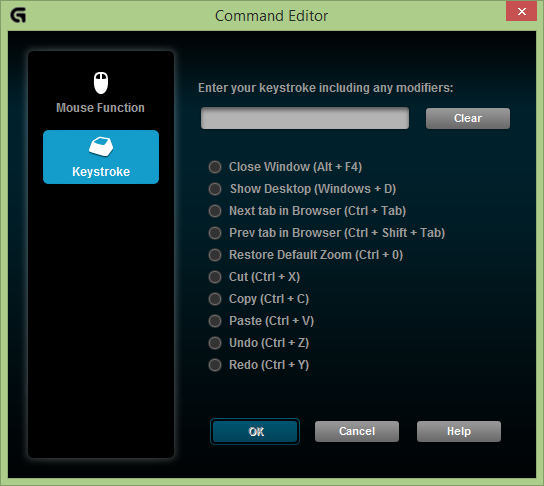
     As I have said before, a lot of the functionality that gaming peripherals have all come from their respective software, Logitech's being the Logitech Gaming Software. There are two different software modes you can redefine for, the "On-Board Memory" mode and "Automatic Game Detection" mode.


     In "On-Board Memory" mode, you get to remap normal keystrokes like Ctrl+C onto the mouse and have the mouse save said keystroke in it's on-board memory. This allows you to plug it into other computers which don't have the Logitech Gaming Software installed but still have custom keys mapped onto the mouse. Pretty nifty if you ask me.


     Next comes the "Automatic Game Detection" mode, which ironically does what it's named after. Other than having the special commands specific to games, this mode also helps you to switch between different profiles when an .exe is detected. You can easily set up new profiles for new games and even productivity software like PowerPoint and what not. Of course, don't forget about the macro recording function that almost every other gaming peripheral has. 

CONCLUSION

     My personal experience using this mouse for more than 2 months is that the G602 is one of the best wireless mice I have ever used. I really like this mouse for it's portability without compromising on the functionality. The battery has yet to die on me even though I have been using it extensively. The Logitech G602 is basically everything you are looking for in a gaming mouse; precision, functionality and performance all while being wireless. I whole heartedly recommend this mouse for anyone that looks for the above criteria. The Logitech G602 retails for RM269.00 and is readily available at all major retailers. With all that considered, the G602 is awarded the Editor's Choice award!